



Chiunque abbia mai gestito un tenant Microsoft 365 con qualche centinaio di utenti conosce bene la sensazione: aprire l’interfaccia di amministrazione, navigare tra pannelli e sottomenu e cercare di capire (in tempi ragionevoli) chi ha quale licenza, quante ne sono state assegnate e quante restano disponibili.
Un’operazione all’apparenza banale che ripetuta ogni mese o ogni volta che arriva una richiesta dall’ufficio acquisti diventa rapidamente una fonte di frustrazione silenziosa.
Il problema non è la complessità tecnica in sé ma la mancanza di automazione. Il portale di amministrazione è pensato per operazioni puntuali non per estrarre dati strutturati in modo ripetibile e affidabile.
Esportare manualmente un elenco di utenti con le relative assegnazioni di licenze significa tempo sprecato, rischio di errori e soprattutto un processo che non scala.
È qui che entra in gioco Microsoft Graph API: un’interfaccia unificata e potente che consente di interrogare l’intero ecosistema Microsoft 365 a livello programmatico ottenendo in pochi secondi le stesse informazioni che il portale restituisce in molti clic.
Con le giuste chiamate API è possibile costruire un inventario completo e aggiornato di tutti gli utenti del tenant corredato delle SKU di licenza assegnate dei service plan attivi e dello stato di ogni sottoscrizione.
In questo articolo vedremo come automatizzare l’intero processo dall’autenticazione tramite un’applicazione registrata su Azure Active Directory fino alla generazione di un export strutturato e pronto per essere analizzato o integrato nei propri strumenti di reporting.
Niente più copia-incolla dal portale: solo dati, script e un inventario sempre aggiornato con un singolo comando.
PREREQUISITI
Sul PC da cui si eseguirà lo script:
- Windows con PowerShell 5.1 o superiore (già incluso in Windows 10/11)
- Connessione internet
- Modulo Microsoft.Graph installato
Su Azure / Microsoft 365:
- Accesso al portale Azure (portal.azure.com) con un account Global Admin o Application Admin
- Un’App Registration creata in Azure AD con:
- Le permission di tipo Application (non Delegated) per User.Read.All, Directory.Read.All e Organization.Read.All
- L’Admin Consent concesso per tutte e tre le permission
- Un Client Secret generato e copiato
- I tre valori disponibili: Tenant ID, Client ID e Client Secret
Permessi minimi sull’account che crea l’App Registration:
- Ruolo Global Administrator oppure Application Administrator nel tenant M365
CREAZIONE E CONFIGURAZIONE DELL’APP SUL TENANT AZURE
Richiamare da un qualsiasi browser portal.azure.com
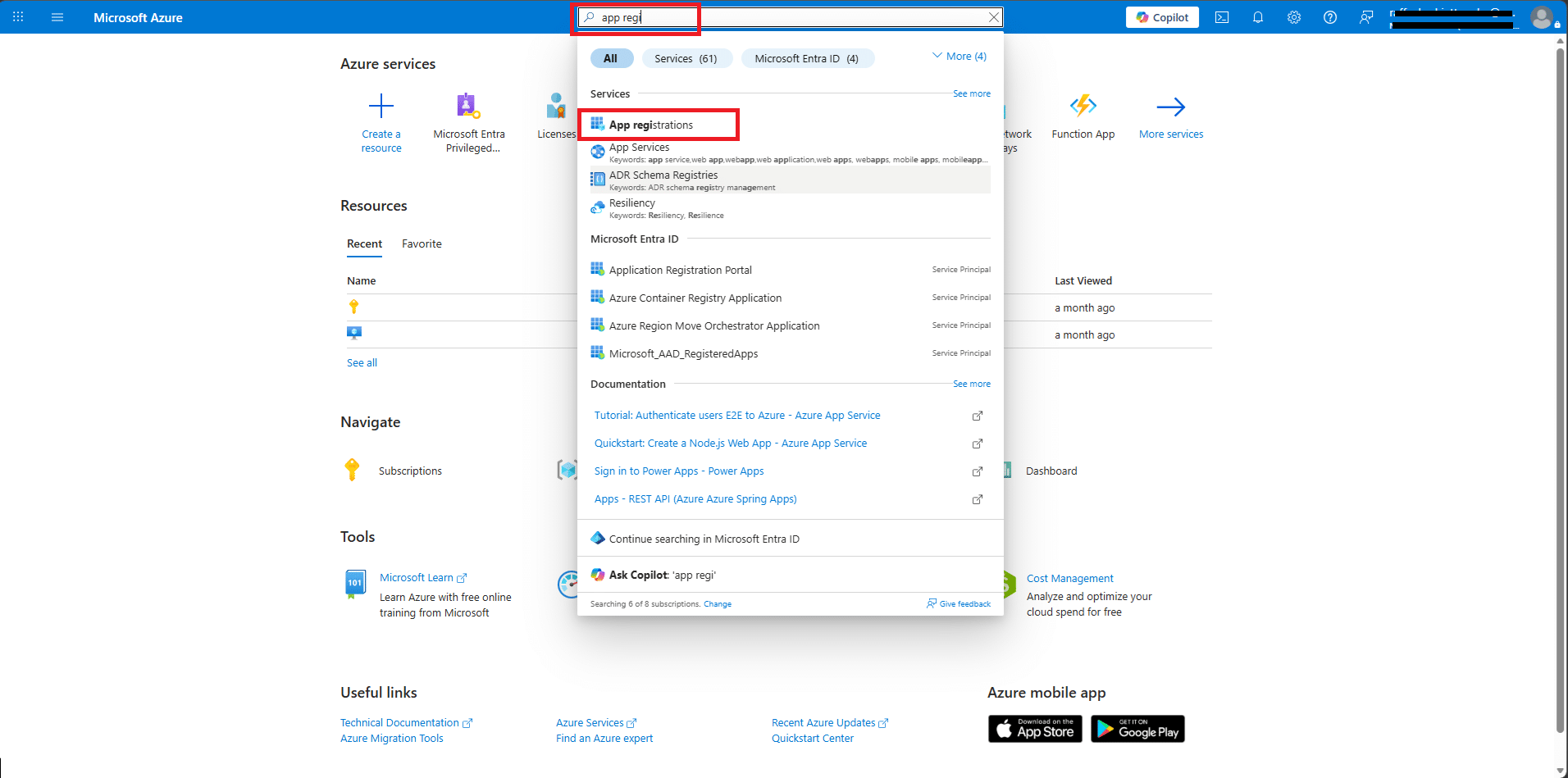
Cercare App Registration
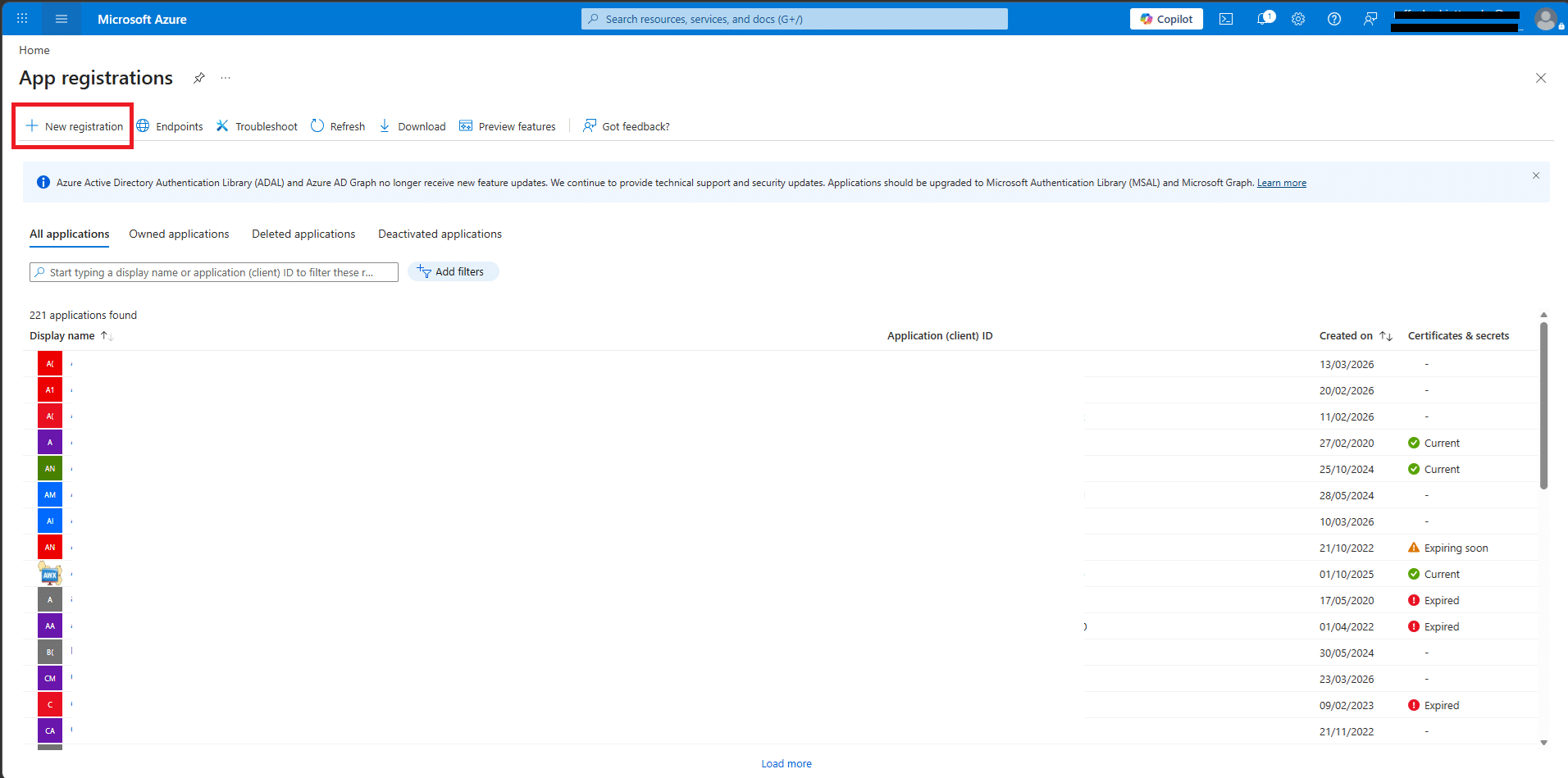
Cliccare su New Registration
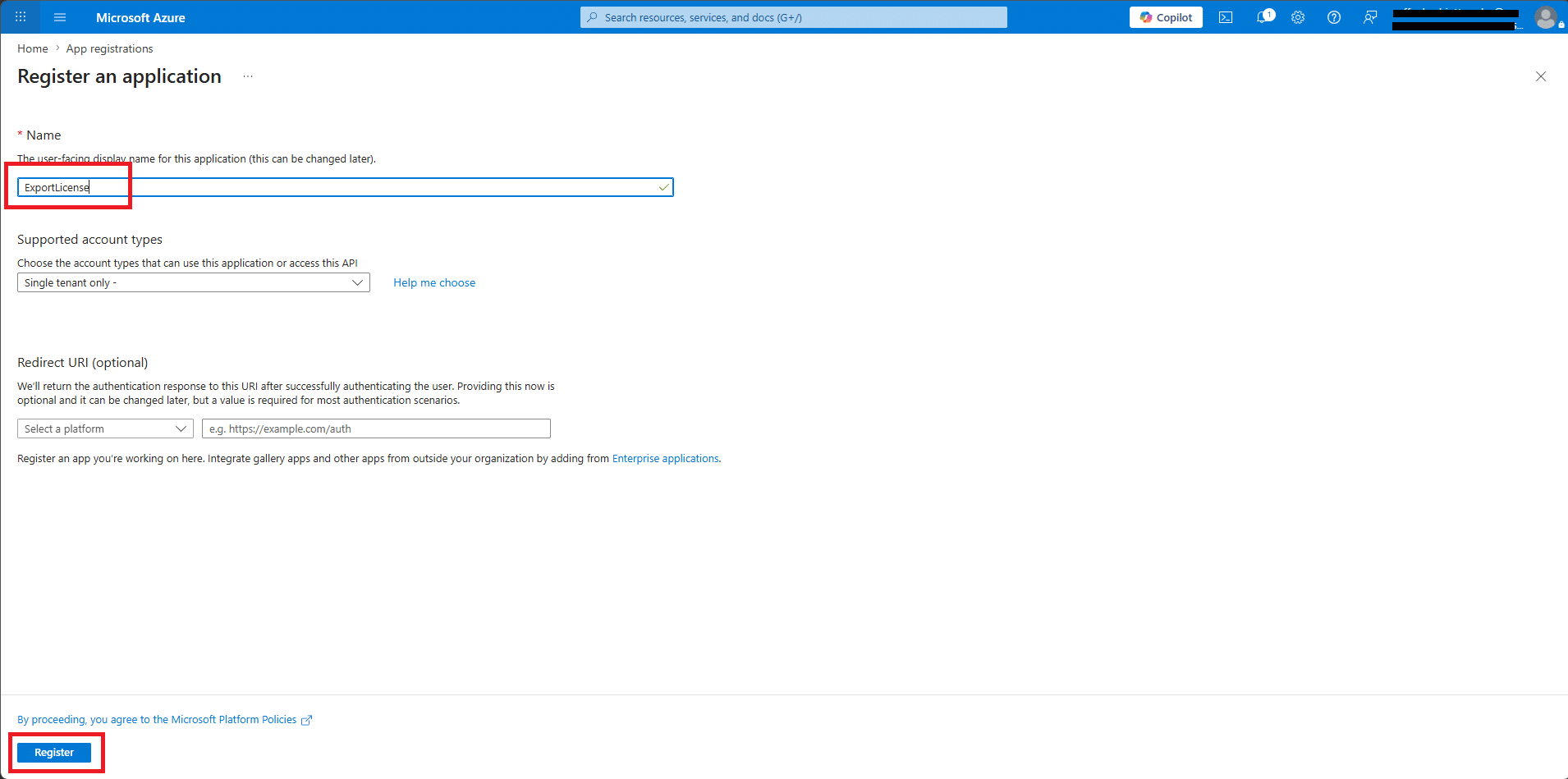
Dare un nome all’App (Es: ExportLicense) quindi cliccare su Register
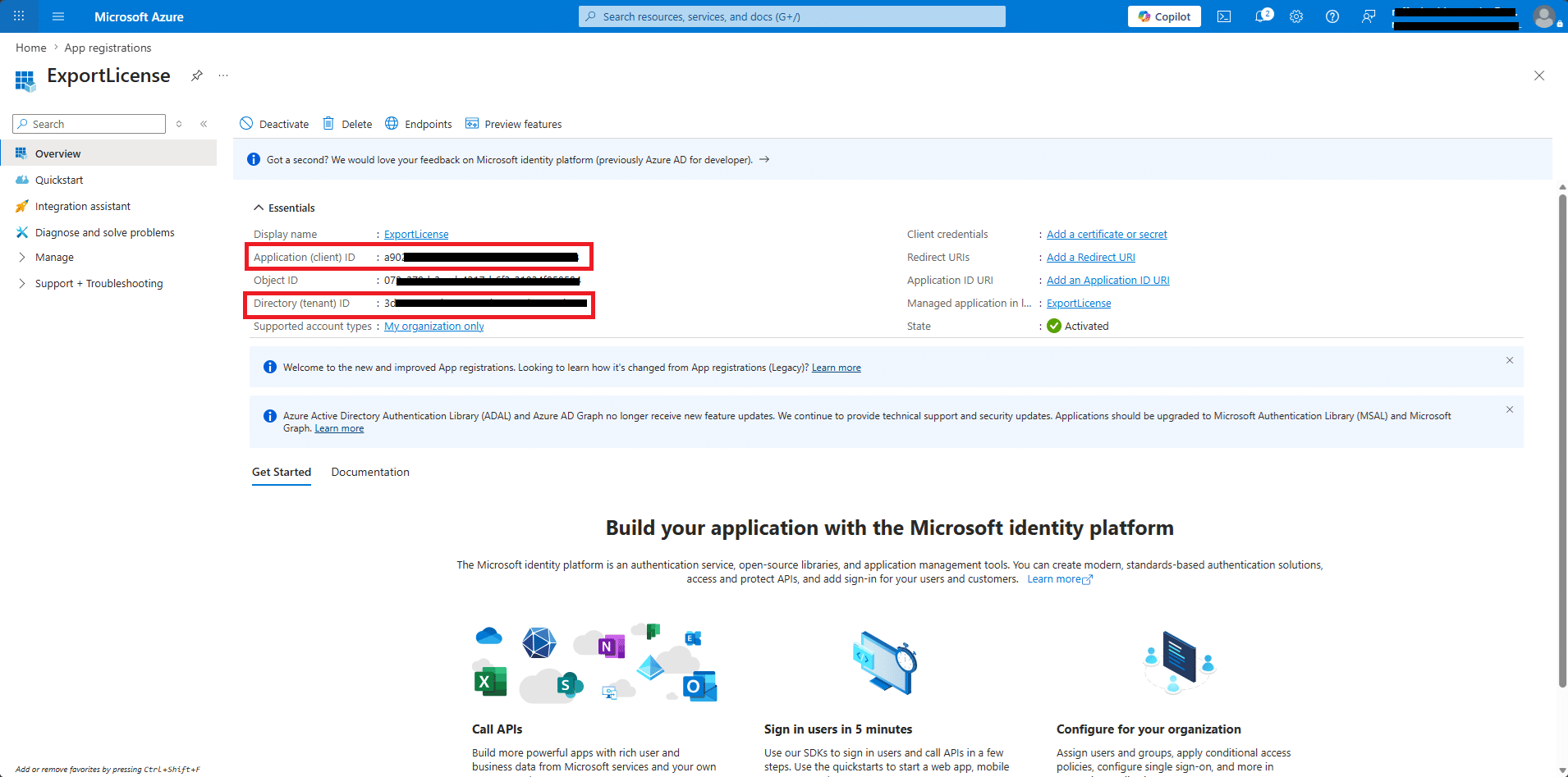
Copiare l’Application (client) ID e il Directory (tenant) ID
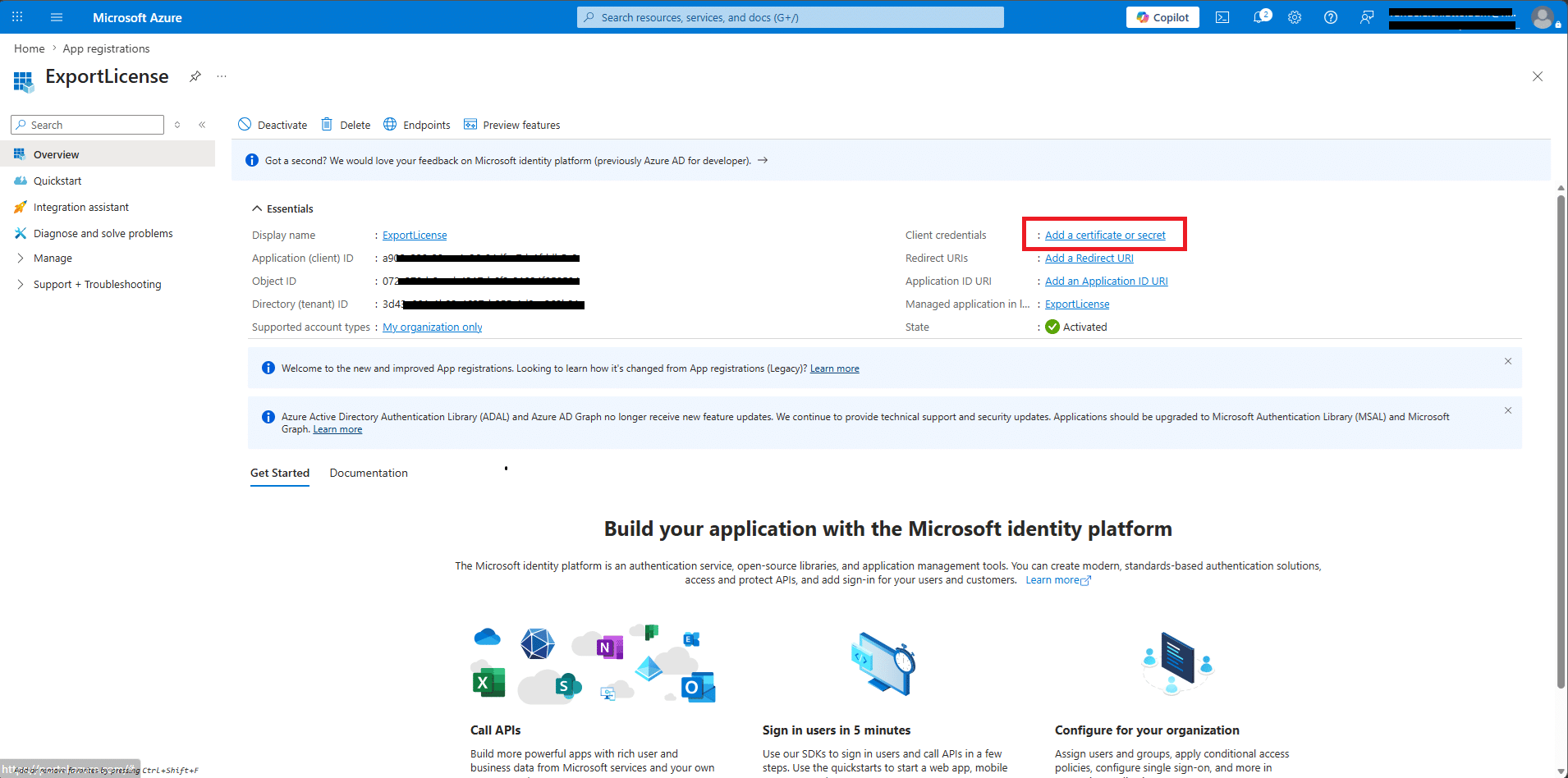
Cliccare su Add a certificate or secret
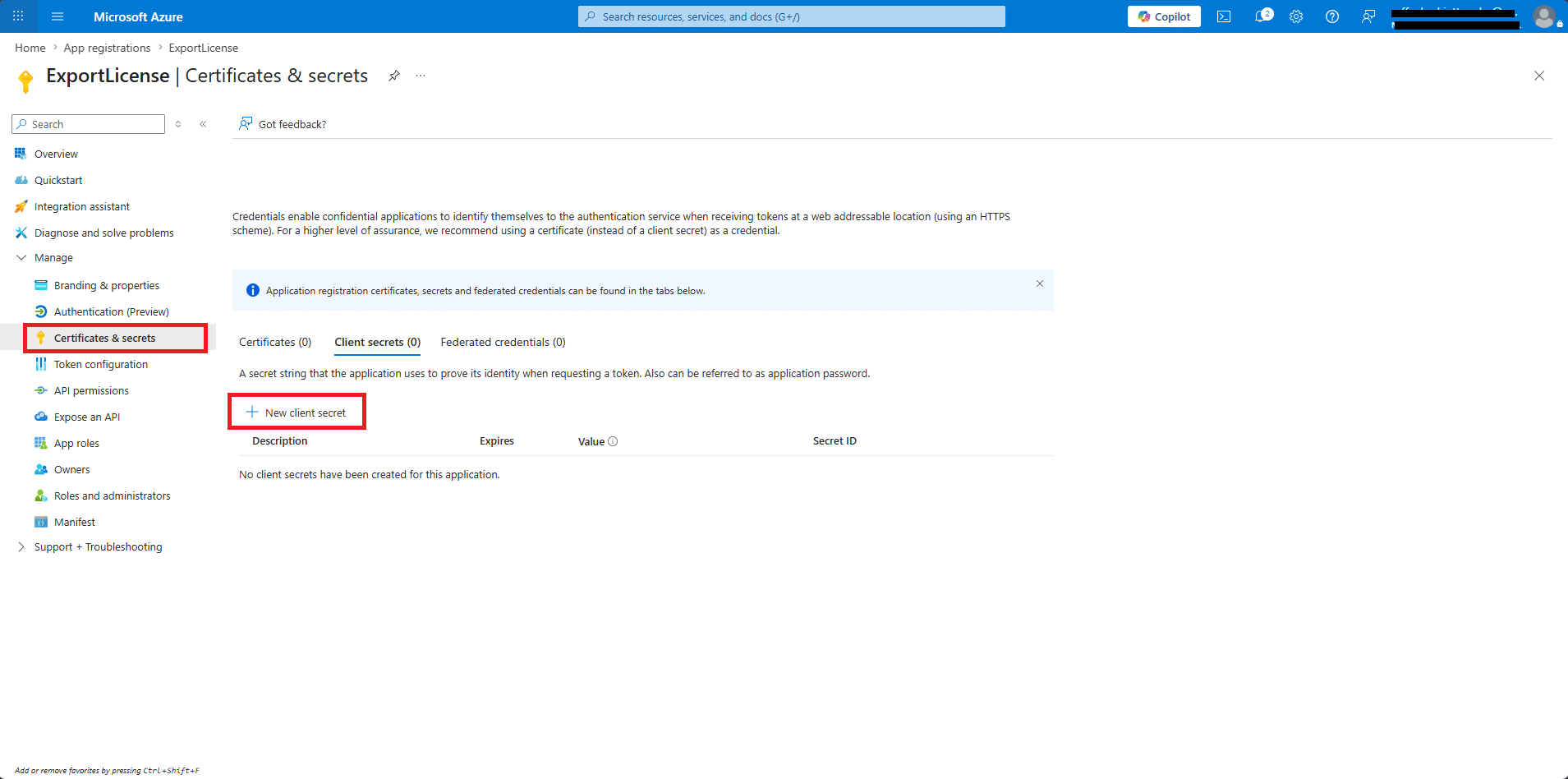
Cliccare su Certificates & Secrets quindi New Client Secret
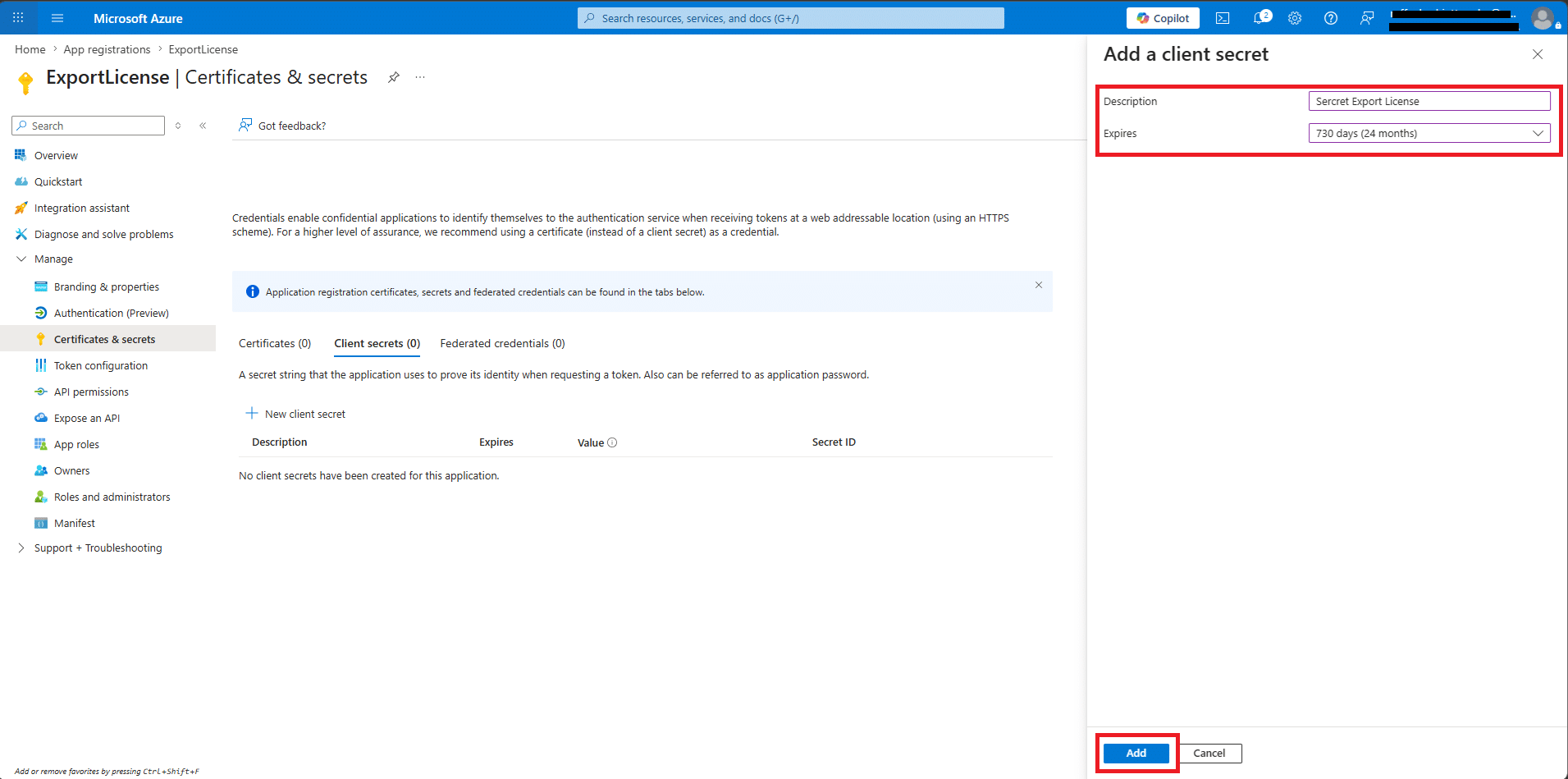
Inserire la Descrizione e la Scadenza quindi cliccare al fondo della pagina Add
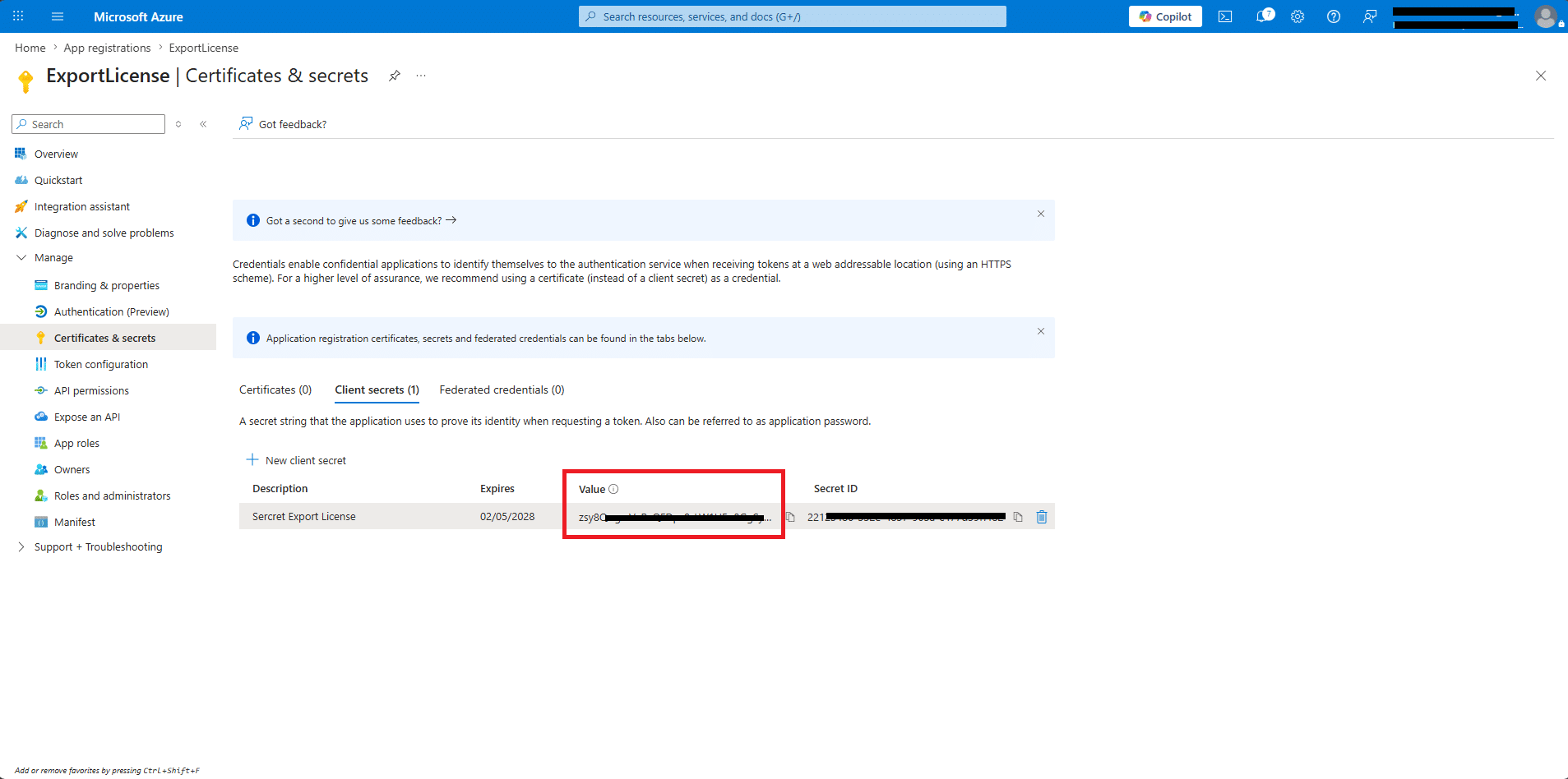
Copiare il Value della Secret
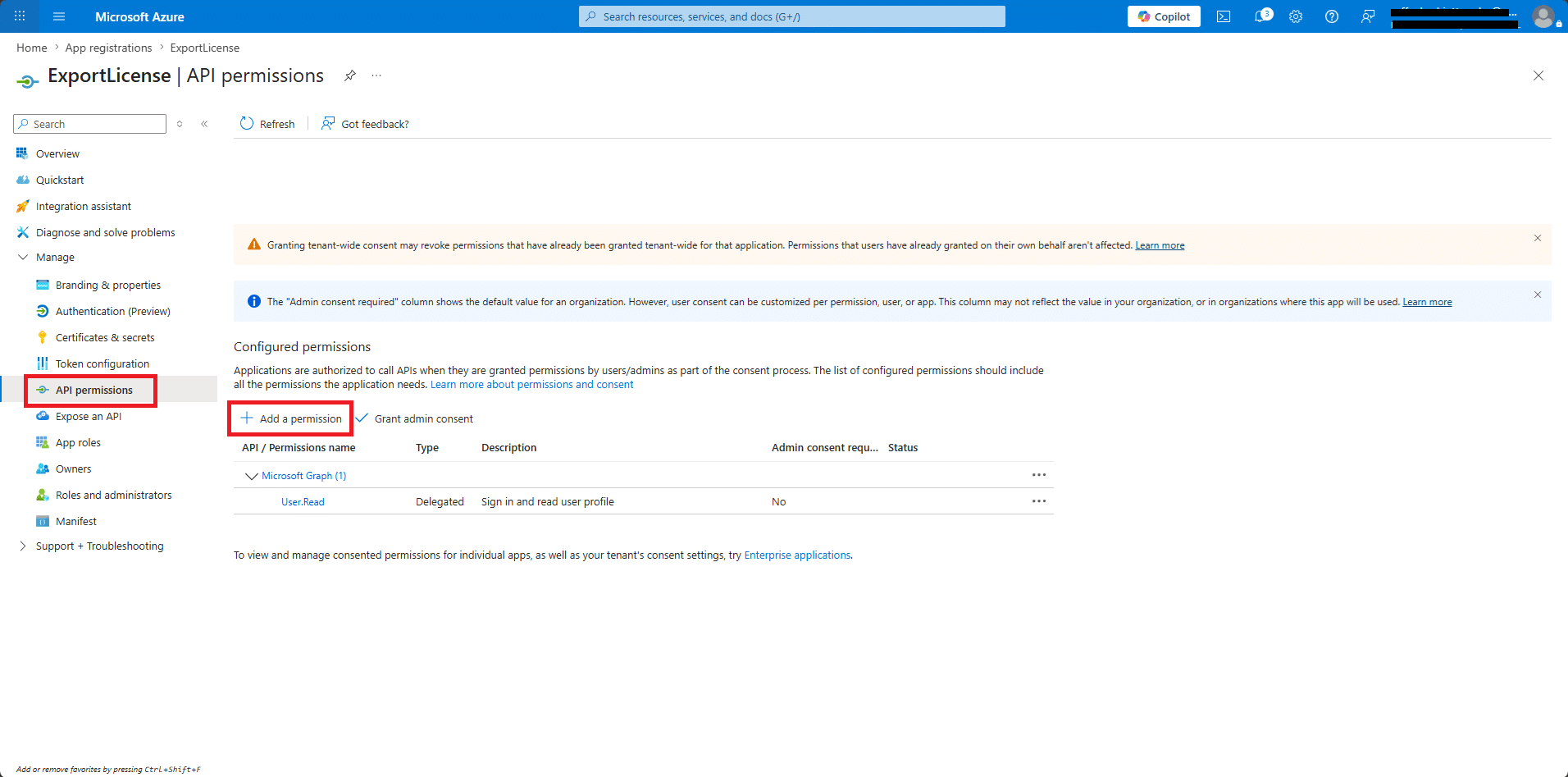
Cliccare su API Permissions quindi Add a Permissions
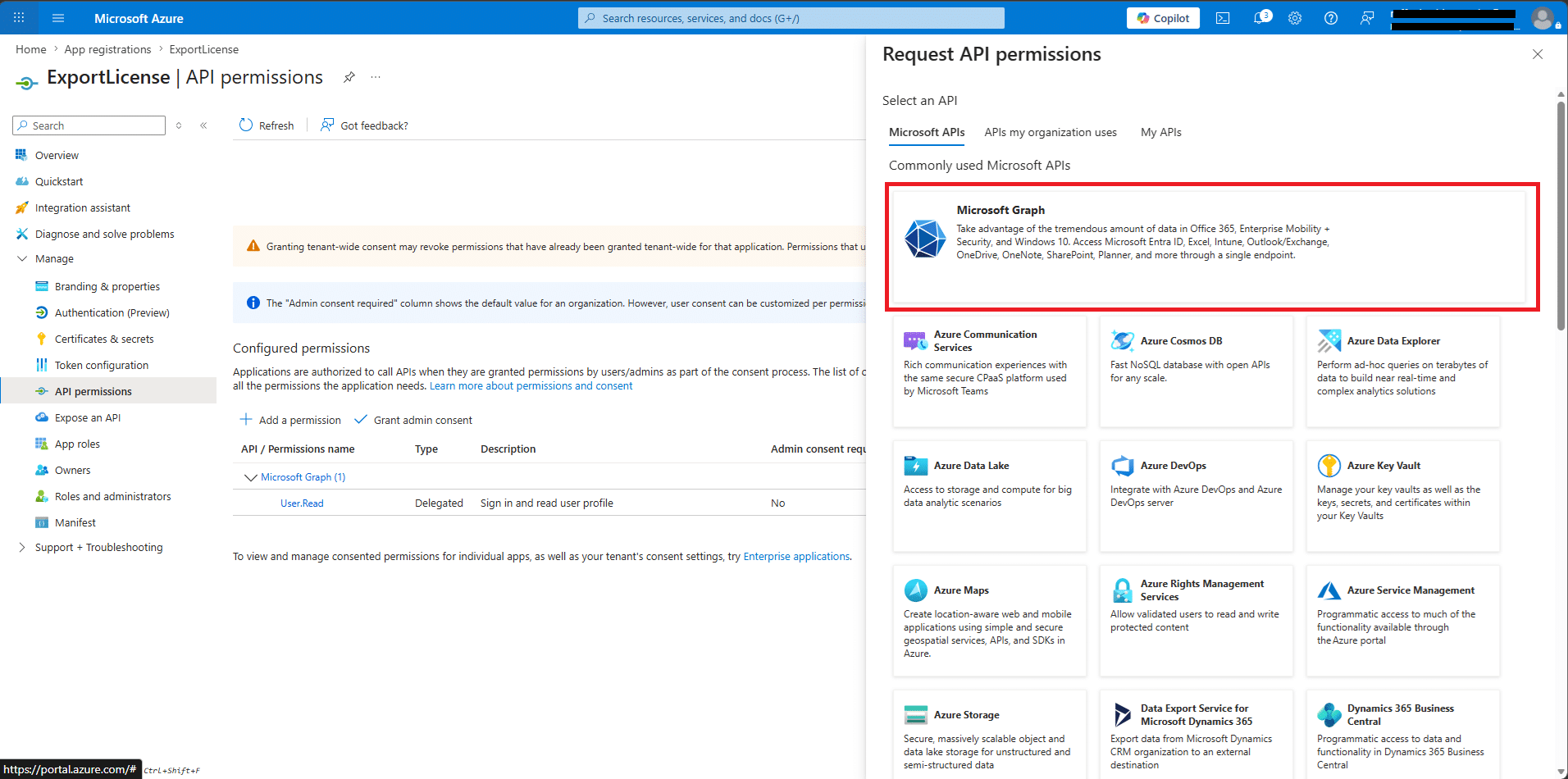
Selezionare Microsoft Graph
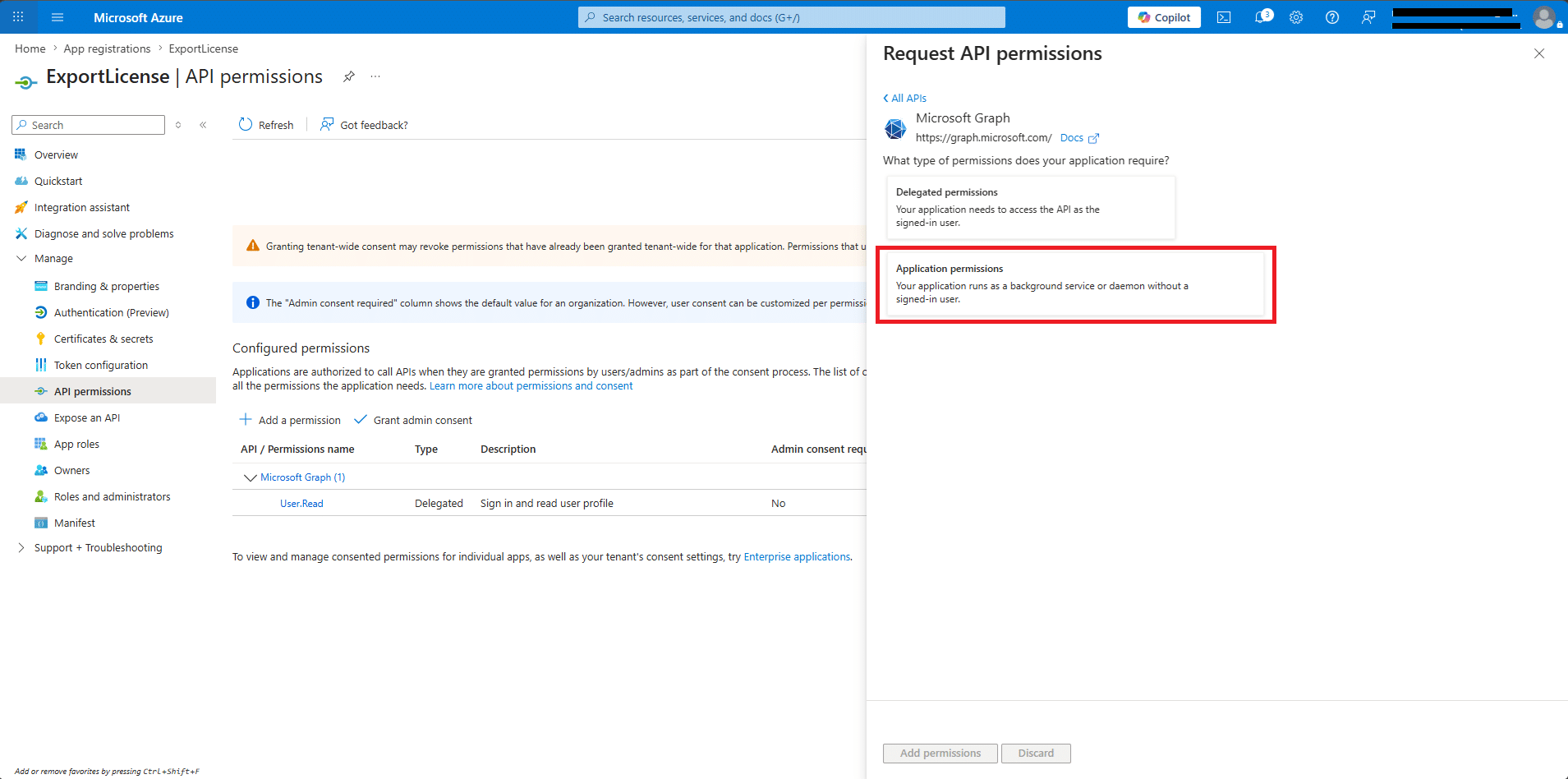
Cliccare su Application Permissions
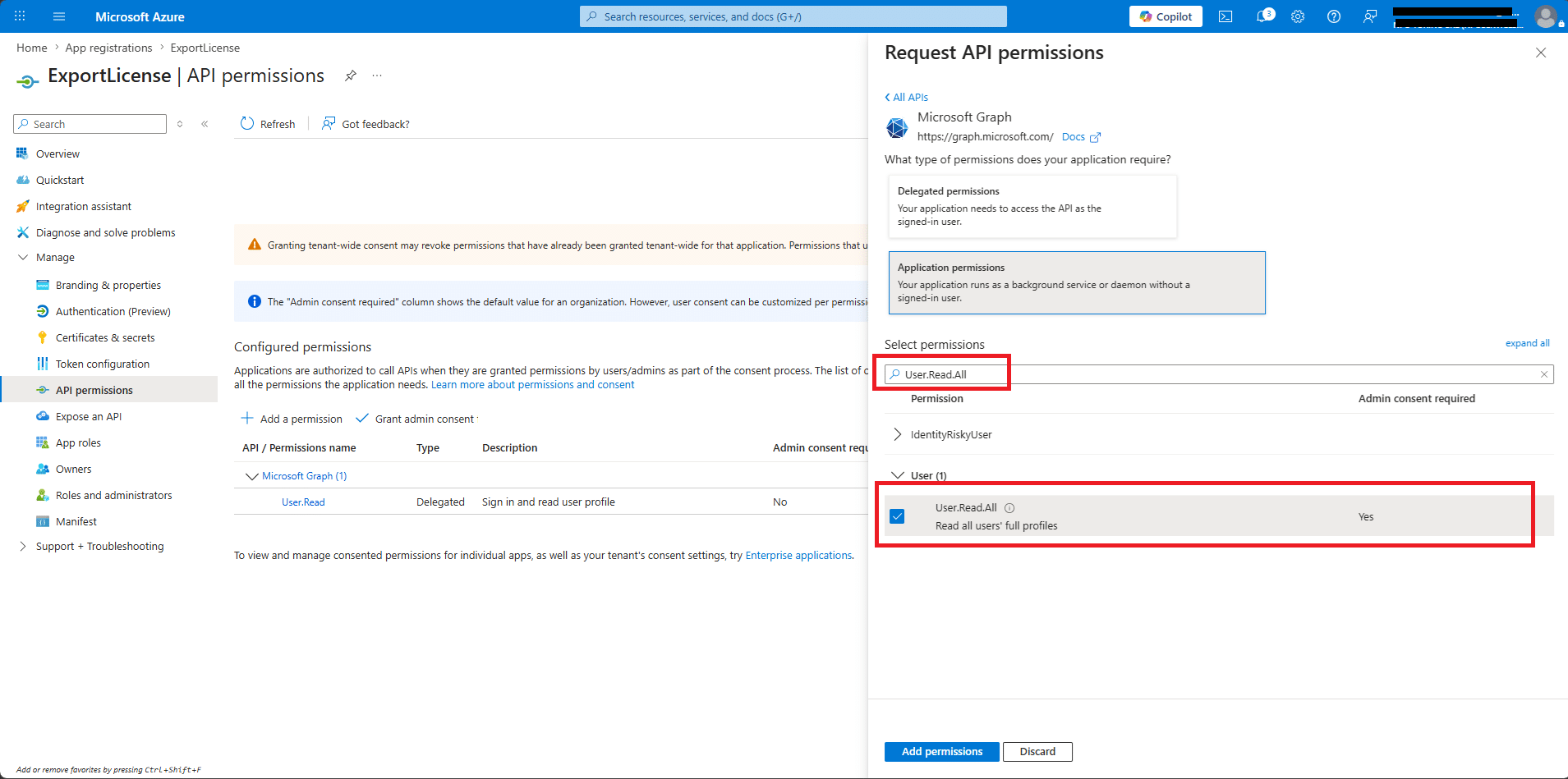
Cercare il valore User.Read.All quindi selezionarlo
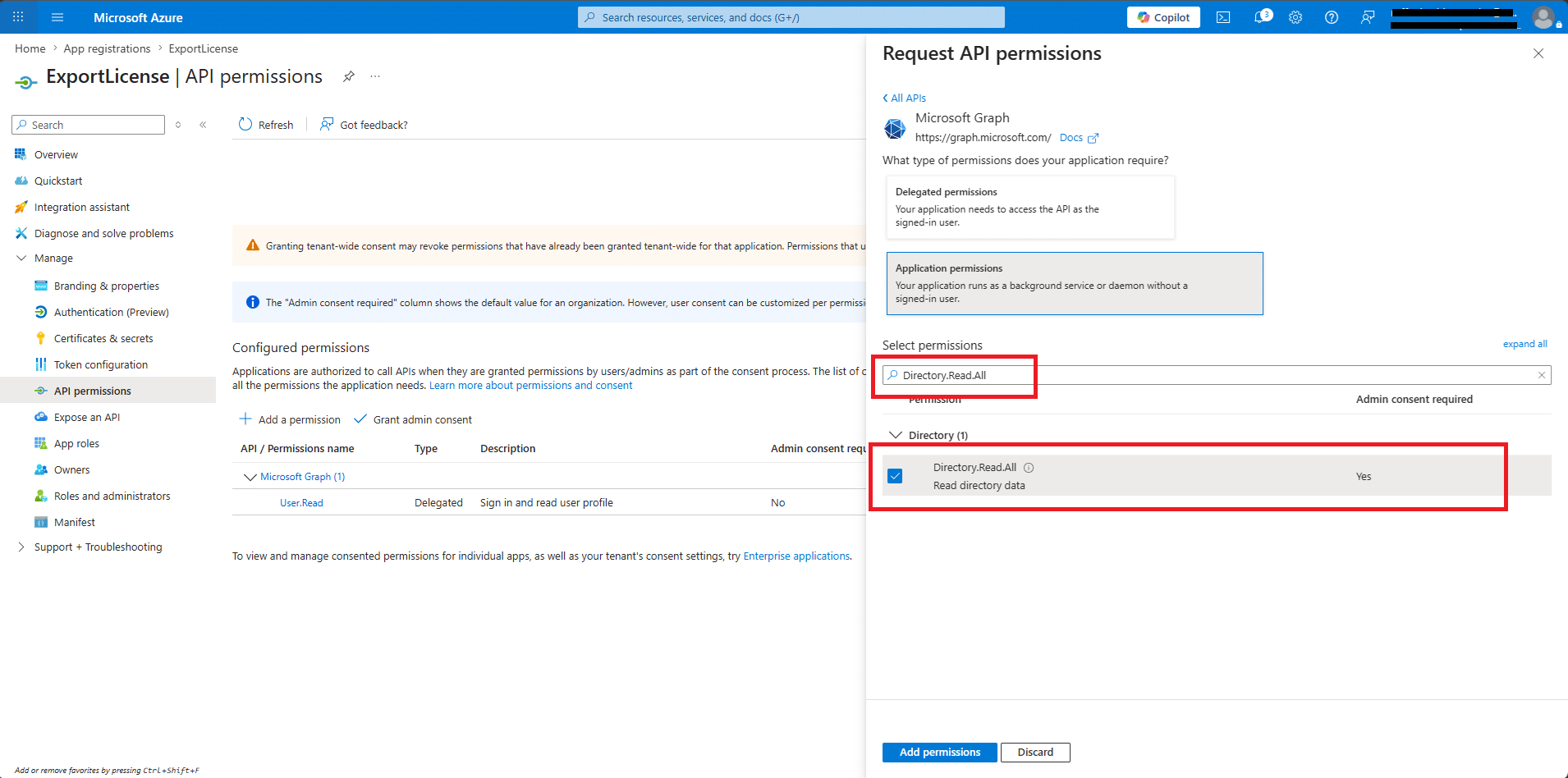
Cercare il valore Directory.Read.All quindi selezionarlo
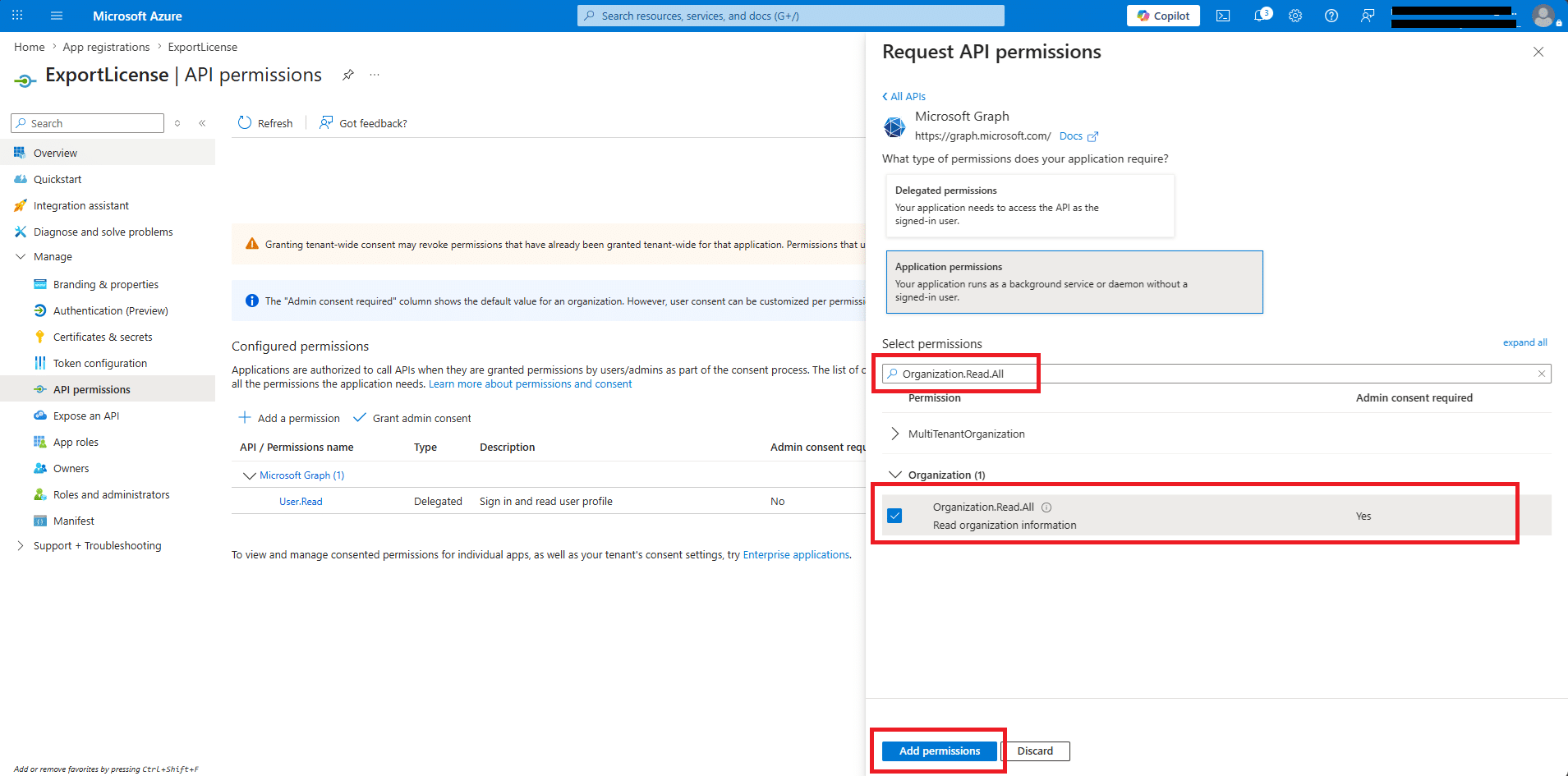
Cercare il valore Organization.Read.Al quindi selezionarlo
Al fondo della pagina cliccare su Add Permissions
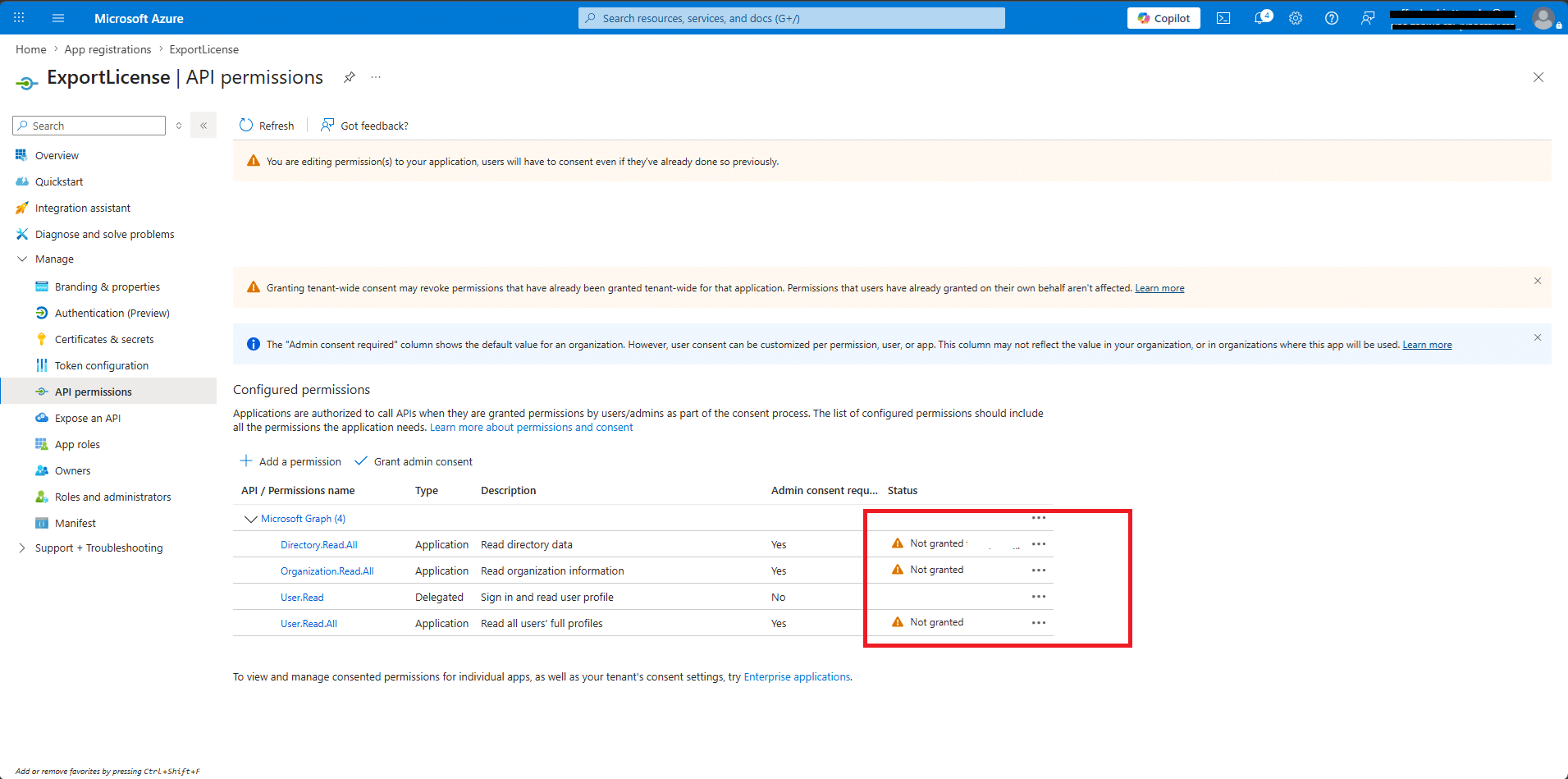
Da questa schermata è possibile notare che le permissions non sono state Consentite da Admin
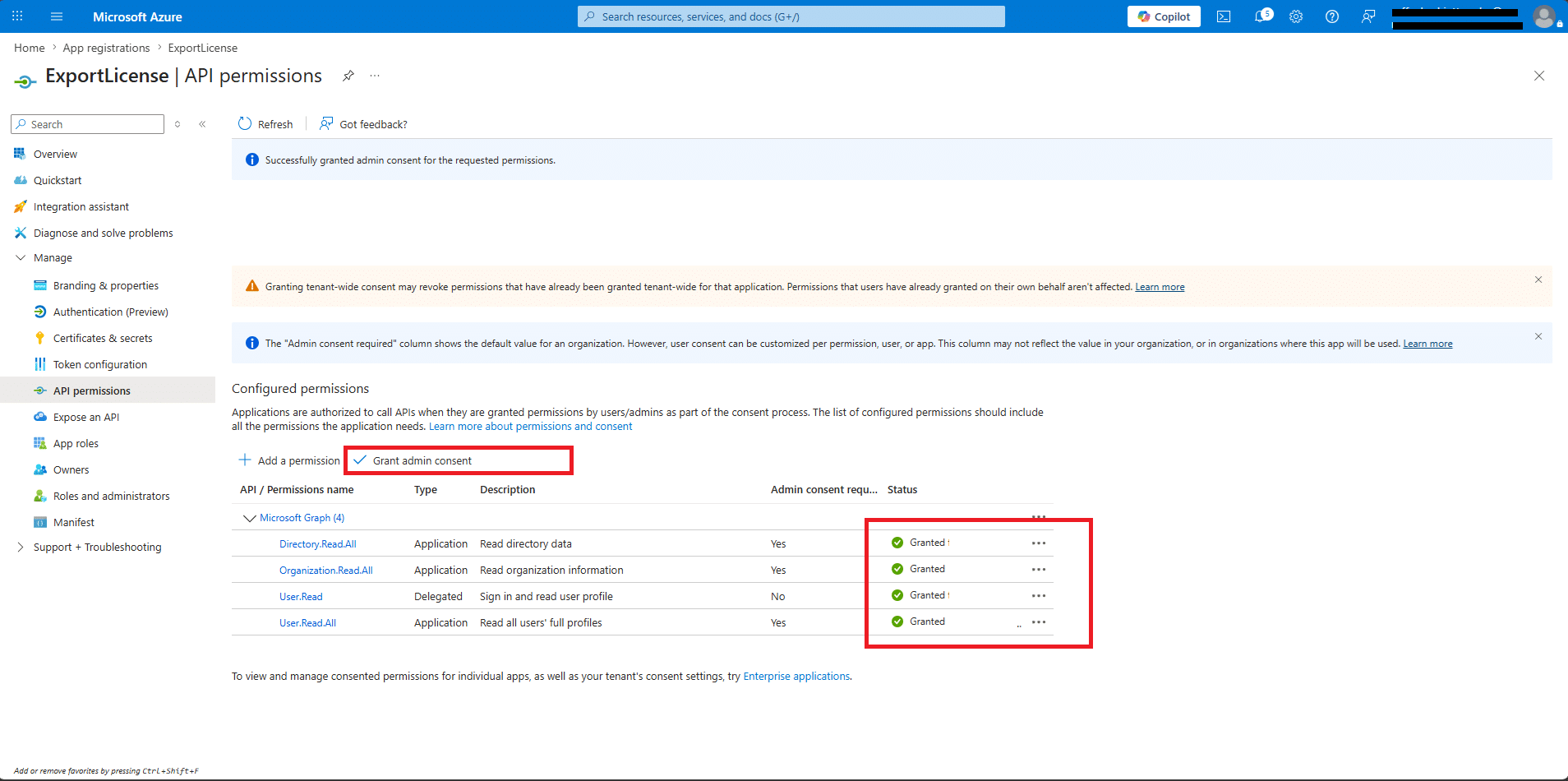
Cliccare su Grant Admin Consent quindi accertiarsi che tutte le permissions abbiano lo stato Granted col bollino verde
INSTALLAZIONE DEL MODULO MICROSOFT GRAPH
Per poter utilizzare lo script è necessario installare il modulo Microsoft.Graph dalla gallery ufficiale di Microsoft (PowerShell Gallery) con il comando:
|
0 |
install-Module Microsoft.Graph -Scope CurrentUser -Force |
In pratica senza questo comando i cmdlet come Connect-MgGraph, Get-MgUser, Get-MgSubscribedSku non esisterebbero in PowerShell e lo script non potrebbe girare.
💡 Si tratta di un’operazione sicura e ufficiale: il modulo è pubblicato e mantenuto direttamente da Microsoft. Scarica circa 200 MB di file nella cartella profilo dell’utente (C:\Users\tuonomeutente\Documents\PowerShell\Modules), senza modificare file di sistema.
⚠️ Potrebbero volerci anche 10/15 minuti al termine dell’installazione. Non chiudere o bloccare la finestra Powershell
SCRIPT PER IL REPERIMENTO DELLE SKU DEL TENANT
La prima cosa da fare è eseguire uno script rapido che interroga il tuo tenant e restituisce tutte le SKU con il loro codice tecnico da aggiungere allo script successivo.
Lo script fa due cose:
Mostra una tabella con tutte le SKU (codice, GUID, totali, usate)
Genera automaticamente il blocco $skuNames pronto da copiare in Export-M365Licenses.ps1 con i codici tecnici come placeholder — dovrai solo sostituire il valore a destra con il nome leggibile che preferisci per quelle SKU che non riconosci.
Di seguito il listato dello script Powershell:
|
0 1 2 3 4 5 6 7 8 9 10 11 12 13 14 15 16 17 18 19 20 21 22 23 24 25 26 27 28 29 30 31 32 33 34 35 36 37 38 39 40 41 42 43 44 45 46 47 48 49 50 51 52 53 54 55 |
# ============================================================ # Get-TenantSKUs.ps1 # Elenca tutte le SKU presenti nel tenant # ============================================================ # ===================================================================== # CONFIGURA QUI LE TUE CREDENZIALI (da Azure App Registration) # ===================================================================== $TenantId = "INSERISCI-IL-TUO-TENANT-ID" $ClientId = "INSERISCI-IL-TUO-CLIENT-ID" $ClientSecret = "INSERISCI-IL-TUO-CLIENT-SECRET" # ===================================================================== Import-Module Microsoft.Graph.Authentication -ErrorAction Stop Import-Module Microsoft.Graph.Identity.DirectoryManagement -ErrorAction Stop # Autenticazione $tokenBody = @{ grant_type = "client_credentials" client_id = $ClientId client_secret = $ClientSecret scope = "https://graph.microsoft.com/.default" } $tokenResponse = Invoke-RestMethod ` -Uri "https://login.microsoftonline.com/$TenantId/oauth2/v2.0/token" ` -Method POST ` -ContentType "application/x-www-form-urlencoded" ` -Body $tokenBody $secureToken = $tokenResponse.access_token | ConvertTo-SecureString -AsPlainText -Force Connect-MgGraph -AccessToken $secureToken -NoWelcome # Recupero SKU $skus = Get-MgSubscribedSku -All | Sort-Object SkuPartNumber Write-Host "`n=== SKU presenti nel tenant ($($skus.Count) trovate) ===`n" -ForegroundColor Cyan # Mostra tabella a schermo $skus | Format-Table @( @{Label="Codice SKU"; Expression={$_.SkuPartNumber}; Width=45}, @{Label="SkuId (GUID)"; Expression={$_.SkuId}; Width=38}, @{Label="Totali"; Expression={$_.PrepaidUnits.Enabled}; Width=8}, @{Label="Usate"; Expression={$_.ConsumedUnits}; Width=8} ) -AutoSize # Genera il blocco $skuNames da copiare nello script principale Write-Host "`n--- COPIA IL BLOCCO SEGUENTE IN Export-M365Licenses.ps1 ---`n" -ForegroundColor Yellow Write-Host '$skuNames = @{' -ForegroundColor Green foreach ($sku in $skus) { $padding = " " * [Math]::Max(1, 45 - $sku.SkuPartNumber.Length) Write-Host " `"$($sku.SkuPartNumber)`"$padding= `"$($sku.SkuPartNumber)`"" -ForegroundColor Green } Write-Host "}" -ForegroundColor Green Write-Host "`n--- Fine blocco ---`n" -ForegroundColor Yellow Disconnect-MgGraph |
Salvare il file col nome Get-TenantSKUs.ps1
Sostituire le seguenti righe con i codici presi in precedenza:
$TenantId = “INSERISCI-IL-TUO-TENANT-ID”
$ClientId = “INSERISCI-IL-TUO-CLIENT-ID”
$ClientSecret = “INSERISCI-IL-TUO-CLIENT-SECRET”
⚠️ Il secret è visibile solo al momento della creazione. Se non l’hai copiato, dovrai eliminarlo e crearne uno nuovo.
COPIA DELLE SKU NELLO SCRIPT
Di seguito un output che potremmo vedere dopo aver eseguito il Powershell Get-TenantSKUs.ps1:
|
0 1 2 3 4 5 6 7 8 9 10 11 12 13 14 15 16 17 18 19 20 21 22 23 24 25 26 27 28 29 30 31 32 33 34 35 36 37 38 39 40 41 42 43 44 45 46 47 48 49 50 51 52 53 54 55 56 57 58 59 60 61 62 |
--- COPIA IL BLOCCO SEGUENTE IN Export-M365Licenses.ps1 --- $skuNames = @{ "CCIBOTS_PRIVPREV_VIRAL" = "CCIBOTS_PRIVPREV_VIRAL" "CPC_E_8C_32GB_512GB" = "CPC_E_8C_32GB_512GB" "D365_SALES_ENT_ATTACH" = "D365_SALES_ENT_ATTACH" "DYN365_BUSCENTRAL_DEVICE" = "DYN365_BUSCENTRAL_DEVICE" "DYN365_BUSCENTRAL_ESSENTIAL" = "DYN365_BUSCENTRAL_ESSENTIAL" "DYN365_BUSCENTRAL_TEAM_MEMBER" = "DYN365_BUSCENTRAL_TEAM_MEMBER" "DYN365_ENTERPRISE_P1_IW" = "DYN365_ENTERPRISE_P1_IW" "DYN365_ENTERPRISE_SALES" = "DYN365_ENTERPRISE_SALES" "DYN365_TEAM_MEMBERS" = "DYN365_TEAM_MEMBERS" "Dynamics_365_Sales_Premium_Viral_Trial" = "Dynamics_365_Sales_Premium_Viral_Trial" "EMSPREMIUM" = "EMSPREMIUM" "EXCHANGEENTERPRISE" = "EXCHANGEENTERPRISE" "EXCHANGESTANDARD" = "EXCHANGESTANDARD" "FLOW_FREE" = "FLOW_FREE" "FLOW_PER_USER" = "FLOW_PER_USER" "IDENTITY_THREAT_PROTECTION" = "IDENTITY_THREAT_PROTECTION" "MCOCAP" = "MCOCAP" "MCOEV" = "MCOEV" "MCOPSTN_5" = "MCOPSTN_5" "MCOPSTN2" = "MCOPSTN2" "Microsoft_365_Copilot" = "Microsoft_365_Copilot" "MICROSOFT_BUSINESS_CENTER" = "MICROSOFT_BUSINESS_CENTER" "Microsoft_Cloud_for_Sustainability_vTrial" = "Microsoft_Cloud_for_Sustainability_vTrial" "Microsoft_Entra_Suite" = "Microsoft_Entra_Suite" "Microsoft_Teams_EEA_New" = "Microsoft_Teams_EEA_New" "Microsoft_Teams_Premium" = "Microsoft_Teams_Premium" "Microsoft_Teams_Rooms_Pro" = "Microsoft_Teams_Rooms_Pro" "Microsoft_Teams_Rooms_Pro_without_Audio_Conferencing" = "Microsoft_Teams_Rooms_Pro_without_Audio_Conferencing" "O365_BUSINESS_ESSENTIALS" = "O365_BUSINESS_ESSENTIALS" "O365_BUSINESS_PREMIUM" = "O365_BUSINESS_PREMIUM" "O365_w/o Teams Bundle_M3" = "O365_w/o Teams Bundle_M3" "O365_w/o_Teams_Bundle_M5" = "O365_w/o_Teams_Bundle_M5" "PBI_PREMIUM_PER_USER" = "PBI_PREMIUM_PER_USER" "PHONESYSTEM_VIRTUALUSER" = "PHONESYSTEM_VIRTUALUSER" "Power_Automate_per_process" = "Power_Automate_per_process" "POWER_BI_PRO_DEPT" = "POWER_BI_PRO_DEPT" "POWER_BI_STANDARD" = "POWER_BI_STANDARD" "Power_Pages_vTrial_for_Makers" = "Power_Pages_vTrial_for_Makers" "Power_Virtual_Agents" = "Power_Virtual_Agents" "POWERAPPS_DEV" = "POWERAPPS_DEV" "POWERAPPS_PER_USER" = "POWERAPPS_PER_USER" "POWERAPPS_VIRAL" = "POWERAPPS_VIRAL" "POWERAUTOMATE_ATTENDED_RPA" = "POWERAUTOMATE_ATTENDED_RPA" "POWERAUTOMATE_ATTENDED_RPA_DEPT" = "POWERAUTOMATE_ATTENDED_RPA_DEPT" "PROJECT_P1" = "PROJECT_P1" "PROJECTPREMIUM" = "PROJECTPREMIUM" "PROJECTPROFESSIONAL" = "PROJECTPROFESSIONAL" "Remote_Help_AddOn" = "Remote_Help_AddOn" "SPE_E3" = "SPE_E3" "SPE_E5" = "SPE_E5" "STANDARDPACK" = "STANDARDPACK" "STREAM" = "STREAM" "THREAT_INTELLIGENCE" = "THREAT_INTELLIGENCE" "UNIVERSAL_PRINT" = "UNIVERSAL_PRINT" "VIRTUAL_AGENT_USL" = "VIRTUAL_AGENT_USL" "VISIOCLIENT" = "VISIOCLIENT" "WINDOWS_STORE" = "WINDOWS_STORE" } --- Fine blocco --- |
A questo punto prima di copiare le SKU nello script modificarle mettendo a destra dell’uguale una descrizione parlante del software:
|
0 1 2 3 4 5 6 7 8 9 10 11 12 13 14 15 16 17 18 19 20 21 22 23 24 25 26 27 28 29 30 31 32 33 34 35 36 37 38 39 40 41 42 43 44 45 46 47 |
"CCIBOTS_PRIVPREV_VIRAL" = "Copilot Studio - Preview virale gratuita" "CPC_E_8C_32GB_512GB" = "Windows 365 Enterprise (8 vCPU, 32GB RAM, 512GB)" "D365_SALES_ENT_ATTACH" = "Dynamics 365 Sales Enterprise (Attach)" "DYN365_BUSCENTRAL_DEVICE" = "Dynamics 365 Business Central - Licenza Dispositivo" "DYN365_BUSCENTRAL_ESSENTIAL" = "Dynamics 365 Business Central Essentials" "DYN365_BUSCENTRAL_TEAM_MEMBER" = "Dynamics 365 Business Central - Team Member" "DYN365_ENTERPRISE_P1_IW" = "Dynamics 365 Customer Engagement Plan" "DYN365_ENTERPRISE_SALES" = "Dynamics 365 Sales Enterprise" "DYN365_TEAM_MEMBERS" = "Dynamics 365 Team Members" "Dynamics_365_Sales_Premium_Viral_Trial" = "Dynamics 365 Sales Premium - Trial virale" "EMSPREMIUM" = "Enterprise Mobility + Security E5" "EXCHANGEENTERPRISE" = "Exchange Online (Piano 2)" "EXCHANGESTANDARD" = "Exchange Online (Piano 1)" "FLOW_PER_USER" = "Power Automate per Utente" "IDENTITY_THREAT_PROTECTION" = "Microsoft Entra ID P2 + Defender for Identity" "MCOCAP" = "Microsoft Teams Shared Devices (CAP)" "MCOPSTN_5" = "Teams Calling Plan per zona (Pay-as-you-go)" "MCOPSTN2" = "Teams Calling Plan Internazionale" "Microsoft_365_Copilot" = "Microsoft 365 Copilot" "MICROSOFT_BUSINESS_CENTER" = "Microsoft Business Center" "Microsoft_Cloud_for_Sustainability_vTrial" = "Microsoft Cloud for Sustainability - Trial" "Microsoft_Entra_Suite" = "Microsoft Entra Suite" "Microsoft_Teams_EEA_New" = "Microsoft Teams (Area Economica Europea)" "Microsoft_Teams_Premium" = "Microsoft Teams Premium" "Microsoft_Teams_Rooms_Pro" = "Microsoft Teams Rooms Pro" "Microsoft_Teams_Rooms_Pro_without_Audio_Conferencing" = "Microsoft Teams Rooms Pro (senza Audioconferenza)" "O365_w/o Teams Bundle_M3" = "Microsoft 365 E3 senza Teams" "O365_w/o_Teams_Bundle_M5" = "Microsoft 365 E5 senza Teams" "PBI_PREMIUM_PER_USER" = "Power BI Premium per Utente" "PHONESYSTEM_VIRTUALUSER" = "Teams Phone - Utente virtuale (gratuito)" "Power_Automate_per_process" = "Power Automate per Processo" "POWER_BI_PRO_DEPT" = "Power BI Pro (Dipartimentale)" "Power_Pages_vTrial_for_Makers" = "Power Pages - Trial per sviluppatori" "Power_Virtual_Agents" = "Copilot Studio (ex Power Virtual Agents)" "POWERAPPS_DEV" = "Power Apps per Sviluppatori (gratuito)" "POWERAPPS_PER_USER" = "Power Apps per Utente" "POWERAPPS_VIRAL" = "Power Apps - Trial virale gratuita" "POWERAUTOMATE_ATTENDED_RPA" = "Power Automate con RPA Attended" "POWERAUTOMATE_ATTENDED_RPA_DEPT" = "Power Automate con RPA Attended (Dipartimentale)" "PROJECT_P1" = "Project Plan 1" "Remote_Help_AddOn" = "Intune Remote Help (Add-on)" "SPE_E3" = "Microsoft 365 E3 (Suite)" "SPE_E5" = "Microsoft 365 E5 (Suite)" "STREAM" = "Microsoft Stream (Piano classico)" "THREAT_INTELLIGENCE" = "Microsoft Defender for Office 365 (Piano 2)" "UNIVERSAL_PRINT" = "Universal Print" "VIRTUAL_AGENT_USL" = "Copilot Studio - Sessioni aggiuntive" "WINDOWS_STORE" = "Microsoft Store for Business" |
SCRIPT CHE ESPORTA LE LICENZE CON LE RELATIVE UTENZE ASSEGNATARIE
Di seguito lo script PowerShell che usa Microsoft Graph per estrarre tutte le licenze del tenant con gli utenti associati e li esporta in CSV (apribile direttamente in Excel).
E’ possibile eseguire lo script nelle due modalità di seguito:
|
0 1 |
# Esegui con percorso predefinito (crea un file con data/ora automatica) .\Export-M365Licenses.ps1 |
|
0 1 |
# Oppure specifica dove salvare il file .\Export-M365Licenses.ps1 -OutputPath "C:\Report\licenze.csv" |
Il File CSV contiene:
Nome Utente / UPN: Identità dell’utente
Account Abilitato: Se l’account è attivo
Reparto / Mansione: Info organizzative
Licenza / Codice SKU: Nome leggibile e codice tecnico
Company Name: Azienda
Totali / Consumate / Disponibili: Contatori per ogni SKU nel tenant
Una riga per ogni combinazione utente–licenza: se un utente ha 3 licenze, avrà 3 righe. Così è possibile filtrare e pivotare facilmente in Excel.
Di seguito lo script Powershell:
|
0 1 2 3 4 5 6 7 8 9 10 11 12 13 14 15 16 17 18 19 20 21 22 23 24 25 26 27 28 29 30 31 32 33 34 35 36 37 38 39 40 41 42 43 44 45 46 47 48 49 50 51 52 53 54 55 56 57 58 59 60 61 62 63 64 65 66 67 68 69 70 71 72 73 74 75 76 77 78 79 80 81 82 83 84 85 86 87 88 89 90 91 92 93 94 95 96 97 98 99 100 101 102 103 104 105 106 107 108 109 110 111 112 113 114 115 116 117 118 119 120 121 122 123 124 125 126 127 128 129 130 131 132 133 134 135 136 137 138 139 140 141 142 143 144 145 146 147 148 149 150 151 152 153 154 155 156 157 158 159 160 161 162 163 164 165 166 167 168 169 170 171 172 173 174 175 176 177 178 179 180 181 182 183 184 185 186 187 188 189 190 191 192 193 194 195 196 197 198 199 200 201 202 203 204 205 206 207 208 209 210 211 212 213 214 |
# ============================================================ # Export-M365Licenses.ps1 (v1) # Compatibile con tutte le versioni del modulo Microsoft.Graph # ============================================================ param( [string]$OutputPath = ".\M365_Licenze_$(Get-Date -Format 'yyyyMMdd_HHmm').csv" ) # ===================================================================== # CONFIGURA QUI LE TUE CREDENZIALI (da Azure App Registration) # ===================================================================== $TenantId = "INSERISCI-IL-TUO-TENANT-ID" $ClientId = "INSERISCI-IL-TUO-CLIENT-ID" $ClientSecret = "INSERISCI-IL-TUO-CLIENT-SECRET" # ===================================================================== # ── 0. VERIFICA MODULO ─────────────────────────────────────── Write-Host "`n[0/4] Verifica modulo Microsoft.Graph..." -ForegroundColor Cyan if (-not (Get-Module -ListAvailable -Name Microsoft.Graph.Authentication)) { Write-Host " Modulo non trovato. Installazione in corso..." -ForegroundColor Yellow Install-Module Microsoft.Graph -Scope CurrentUser -Force -AllowClobber } Import-Module Microsoft.Graph.Authentication -ErrorAction Stop Import-Module Microsoft.Graph.Users -ErrorAction Stop Import-Module Microsoft.Graph.Identity.DirectoryManagement -ErrorAction Stop Write-Host " Moduli caricati." -ForegroundColor Green # ── 1. CONNESSIONE con TOKEN OAUTH DIRETTO ─────────────────── Write-Host "[1/4] Richiesta token OAuth a Microsoft..." -ForegroundColor Cyan try { $tokenBody = @{ grant_type = "client_credentials" client_id = $ClientId client_secret = $ClientSecret scope = "https://graph.microsoft.com/.default" } $tokenResponse = Invoke-RestMethod ` -Uri "https://login.microsoftonline.com/$TenantId/oauth2/v2.0/token" ` -Method POST ` -ContentType "application/x-www-form-urlencoded" ` -Body $tokenBody ` -ErrorAction Stop $secureToken = $tokenResponse.access_token | ConvertTo-SecureString -AsPlainText -Force Connect-MgGraph -AccessToken $secureToken -NoWelcome -ErrorAction Stop Write-Host " Connessione riuscita!" -ForegroundColor Green } catch { Write-Host "`n ERRORE di autenticazione:" -ForegroundColor Red Write-Host " $($_.Exception.Message)" -ForegroundColor Red exit 1 } # ── 2. MAPPA SKU → NOME LEGGIBILE ─────────────────────────── Write-Host "[2/4] Recupero catalogo licenze..." -ForegroundColor Cyan $skuNames = @{ "AAD_PREMIUM" = "Azure AD Premium P1" "AAD_PREMIUM_P2" = "Azure AD Premium P2" "ATP_ENTERPRISE" = "Microsoft Defender for Office 365 (Plan 1)" "ENTERPRISEPACK" = "Microsoft 365 E3" "ENTERPRISEPREMIUM" = "Microsoft 365 E5" "ENTERPRISEPREMIUM_NOPSTNCONF" = "Microsoft 365 E5 (senza audioconferenza)" "FLOW_FREE" = "Microsoft Power Automate Free" "INTUNE_A" = "Microsoft Intune" "M365EDU_A3_FACULTY" = "Microsoft 365 A3 (Docenti)" "M365EDU_A3_STUDENT" = "Microsoft 365 A3 (Studenti)" "M365EDU_A5_FACULTY" = "Microsoft 365 A5 (Docenti)" "MCOEV" = "Microsoft Teams Phone Standard" "MCOMEETADV" = "Microsoft 365 Audio Conferencing" "MCOSTANDARD" = "Skype for Business Online (Plan 2)" "O365_BUSINESS_ESSENTIALS" = "Microsoft 365 Business Basic" "O365_BUSINESS_PREMIUM" = "Microsoft 365 Business Standard" "OFFICESUBSCRIPTION" = "Microsoft 365 Apps for Enterprise" "POWER_BI_PRO" = "Power BI Pro" "POWER_BI_STANDARD" = "Power BI (gratuito)" "PROJECTPREMIUM" = "Project Plan 5" "PROJECTPROFESSIONAL" = "Project Plan 3" "SPB" = "Microsoft 365 Business Premium" "STANDARDPACK" = "Microsoft 365 E1 (Office 365 E1)" "VISIOCLIENT" = "Visio Plan 2" "VISIOONLINE_PLAN1" = "Visio Plan 1" "WIN10_PRO_ENT_SUB" = "Windows 10/11 Enterprise E3" "CCIBOTS_PRIVPREV_VIRAL" = "Copilot Studio - Preview virale gratuita" "CPC_E_8C_32GB_512GB" = "Windows 365 Enterprise (8 vCPU, 32GB RAM, 512GB)" "D365_SALES_ENT_ATTACH" = "Dynamics 365 Sales Enterprise (Attach)" "DYN365_BUSCENTRAL_DEVICE" = "Dynamics 365 Business Central - Licenza Dispositivo" "DYN365_BUSCENTRAL_ESSENTIAL" = "Dynamics 365 Business Central Essentials" "DYN365_BUSCENTRAL_TEAM_MEMBER" = "Dynamics 365 Business Central - Team Member" "DYN365_ENTERPRISE_P1_IW" = "Dynamics 365 Customer Engagement Plan" "DYN365_ENTERPRISE_SALES" = "Dynamics 365 Sales Enterprise" "DYN365_TEAM_MEMBERS" = "Dynamics 365 Team Members" "Dynamics_365_Sales_Premium_Viral_Trial" = "Dynamics 365 Sales Premium - Trial virale" "EMSPREMIUM" = "Enterprise Mobility + Security E5" "EXCHANGEENTERPRISE" = "Exchange Online (Piano 2)" "EXCHANGESTANDARD" = "Exchange Online (Piano 1)" "FLOW_PER_USER" = "Power Automate per Utente" "IDENTITY_THREAT_PROTECTION" = "Microsoft Entra ID P2 + Defender for Identity" "MCOCAP" = "Microsoft Teams Shared Devices (CAP)" "MCOPSTN_5" = "Teams Calling Plan per zona (Pay-as-you-go)" "MCOPSTN2" = "Teams Calling Plan Internazionale" "Microsoft_365_Copilot" = "Microsoft 365 Copilot" "MICROSOFT_BUSINESS_CENTER" = "Microsoft Business Center" "Microsoft_Cloud_for_Sustainability_vTrial" = "Microsoft Cloud for Sustainability - Trial" "Microsoft_Entra_Suite" = "Microsoft Entra Suite" "Microsoft_Teams_EEA_New" = "Microsoft Teams (Area Economica Europea)" "Microsoft_Teams_Premium" = "Microsoft Teams Premium" "Microsoft_Teams_Rooms_Pro" = "Microsoft Teams Rooms Pro" "Microsoft_Teams_Rooms_Pro_without_Audio_Conferencing" = "Microsoft Teams Rooms Pro (senza Audioconferenza)" "O365_w/o Teams Bundle_M3" = "Microsoft 365 E3 senza Teams" "O365_w/o_Teams_Bundle_M5" = "Microsoft 365 E5 senza Teams" "PBI_PREMIUM_PER_USER" = "Power BI Premium per Utente" "PHONESYSTEM_VIRTUALUSER" = "Teams Phone - Utente virtuale (gratuito)" "Power_Automate_per_process" = "Power Automate per Processo" "POWER_BI_PRO_DEPT" = "Power BI Pro (Dipartimentale)" "Power_Pages_vTrial_for_Makers" = "Power Pages - Trial per sviluppatori" "Power_Virtual_Agents" = "Copilot Studio (ex Power Virtual Agents)" "POWERAPPS_DEV" = "Power Apps per Sviluppatori (gratuito)" "POWERAPPS_PER_USER" = "Power Apps per Utente" "POWERAPPS_VIRAL" = "Power Apps - Trial virale gratuita" "POWERAUTOMATE_ATTENDED_RPA" = "Power Automate con RPA Attended" "POWERAUTOMATE_ATTENDED_RPA_DEPT" = "Power Automate con RPA Attended (Dipartimentale)" "PROJECT_P1" = "Project Plan 1" "Remote_Help_AddOn" = "Intune Remote Help (Add-on)" "SPE_E3" = "Microsoft 365 E3 (Suite)" "SPE_E5" = "Microsoft 365 E5 (Suite)" "STREAM" = "Microsoft Stream (Piano classico)" "THREAT_INTELLIGENCE" = "Microsoft Defender for Office 365 (Piano 2)" "UNIVERSAL_PRINT" = "Universal Print" "VIRTUAL_AGENT_USL" = "Copilot Studio - Sessioni aggiuntive" "WINDOWS_STORE" = "Microsoft Store for Business" } $subscribedSkus = Get-MgSubscribedSku -All $skuMap = @{} foreach ($sku in $subscribedSkus) { $friendlyName = if ($skuNames.ContainsKey($sku.SkuPartNumber)) { $skuNames[$sku.SkuPartNumber] } else { $sku.SkuPartNumber } $skuMap[$sku.SkuId] = @{ Nome = $friendlyName Codice = $sku.SkuPartNumber Totali = $sku.PrepaidUnits.Enabled Consumate = $sku.ConsumedUnits Disponibili = $sku.PrepaidUnits.Enabled - $sku.ConsumedUnits } } # ── 3. RECUPERO UTENTI E LICENZE ──────────────────────────── Write-Host "[3/4] Recupero utenti e licenze assegnate..." -ForegroundColor Cyan $users = Get-MgUser -All -Property ` "Id,DisplayName,UserPrincipalName,AccountEnabled,CompanyName,Department,JobTitle,AssignedLicenses,UsageLocation" $results = [System.Collections.Generic.List[PSCustomObject]]::new() foreach ($user in $users) { if ($user.AssignedLicenses.Count -eq 0) { $results.Add([PSCustomObject]@{ "Nome Utente" = $user.DisplayName "UPN" = $user.UserPrincipalName "Account Abilitato" = $user.AccountEnabled "Azienda" = $user.CompanyName "Reparto" = $user.Department "Mansione" = $user.JobTitle "Paese Utilizzo" = $user.UsageLocation "Licenza" = "(nessuna)" "Codice SKU" = "" "Totali Tenant" = "" "Consumate" = "" "Disponibili" = "" }) continue } foreach ($lic in $user.AssignedLicenses) { $skuInfo = $skuMap[$lic.SkuId] $results.Add([PSCustomObject]@{ "Nome Utente" = $user.DisplayName "UPN" = $user.UserPrincipalName "Account Abilitato" = $user.AccountEnabled "Azienda" = $user.CompanyName "Reparto" = $user.Department "Mansione" = $user.JobTitle "Paese Utilizzo" = $user.UsageLocation "Licenza" = if ($skuInfo) { $skuInfo.Nome } else { $lic.SkuId } "Codice SKU" = if ($skuInfo) { $skuInfo.Codice } else { "" } "Totali Tenant" = if ($skuInfo) { $skuInfo.Totali } else { "" } "Consumate" = if ($skuInfo) { $skuInfo.Consumate } else { "" } "Disponibili" = if ($skuInfo) { $skuInfo.Disponibili } else { "" } }) } } # ── 4. ESPORTAZIONE CSV ────────────────────────────────────── Write-Host "[4/4] Esportazione in CSV..." -ForegroundColor Cyan $results | Export-Csv -Path $OutputPath -NoTypeInformation -Encoding UTF8 -Delimiter ";" Write-Host "`n Esportazione completata!" -ForegroundColor Green Write-Host " File salvato in : $OutputPath" Write-Host " Righe esportate : $($results.Count)" Write-Host " Utenti trovati : $($users.Count)" Write-Host " SKU nel tenant : $($subscribedSkus.Count)`n" Disconnect-MgGraph |
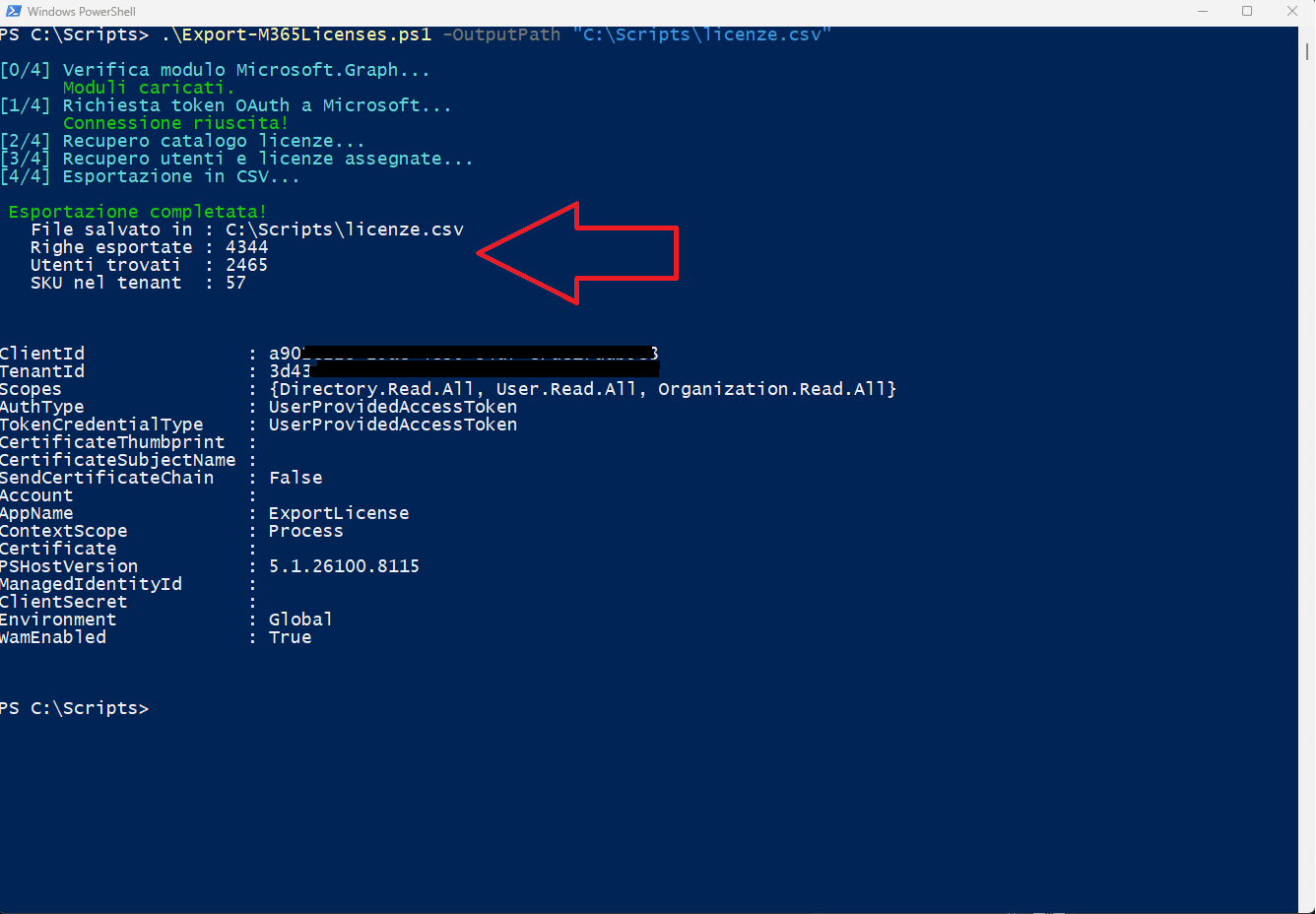
Se tutto è andato a buon fine dovremmo vedere una schermata come quella dell’immagine sovrastante
ANALISI DEL FILE CSV
Nel file CSV trovi una riga per ogni combinazione utente-licenza. Le colonne sono:
Nome Utente: Mario Rossi
UPN: [email protected]
Account Abilitato: True / False
Azienda: Società 1
Reparto: IT
Mansione: System Administrator
Paese Utilizzo: IT
Licenza: Microsoft 365 E3
Codice SKU: ENTERPRISEPACK
Totali Tenant: 50
Consumate: 43
Disponibili: 7
Di seguito uno screenshot del file excel





0 Commenti